Add the Zyles MCP to Claude
This guide walks through the setup step by step. The only thing you need to remember is this address:
https://mcp.zyles.ai/mcp
/mcphttps://mcp.zyles.ai on its own does not work. The /mcp path is part of it.
There are two ways to sign in:
| Path | Who it's for | What you need |
|---|---|---|
| A — Browser sign-in (OAuth) | claude.ai, Claude Desktop, Claude Code | Your normal Zyles credentials. Covers all projects on your account. |
| B — API key | Clients without a connect button (e.g. Cursor), automations | A project-scoped API key. Bound to one project. |
When in doubt: path A.
Path A — Browser sign-in (OAuth)
No API key, no config file.
Step 1 — Create the connector
claude.ai / Claude Desktop: go to Settings → Connectors, then Add custom connector:
| Field | Value |
|---|---|
| Name | Zyles |
| URL | https://mcp.zyles.ai/mcp |
Claude Code: a single command is enough.
claude mcp add --transport http zyles https://mcp.zyles.ai/mcp
Step 2 — Connect
Click Connect in the connector list. In Claude Code, type /mcp instead and
choose zyles → Authenticate.
A browser window opens with the Zyles sign-in page.
Step 3 — Sign in to Zyles
Use the same email address and password you use to log in to Zyles.
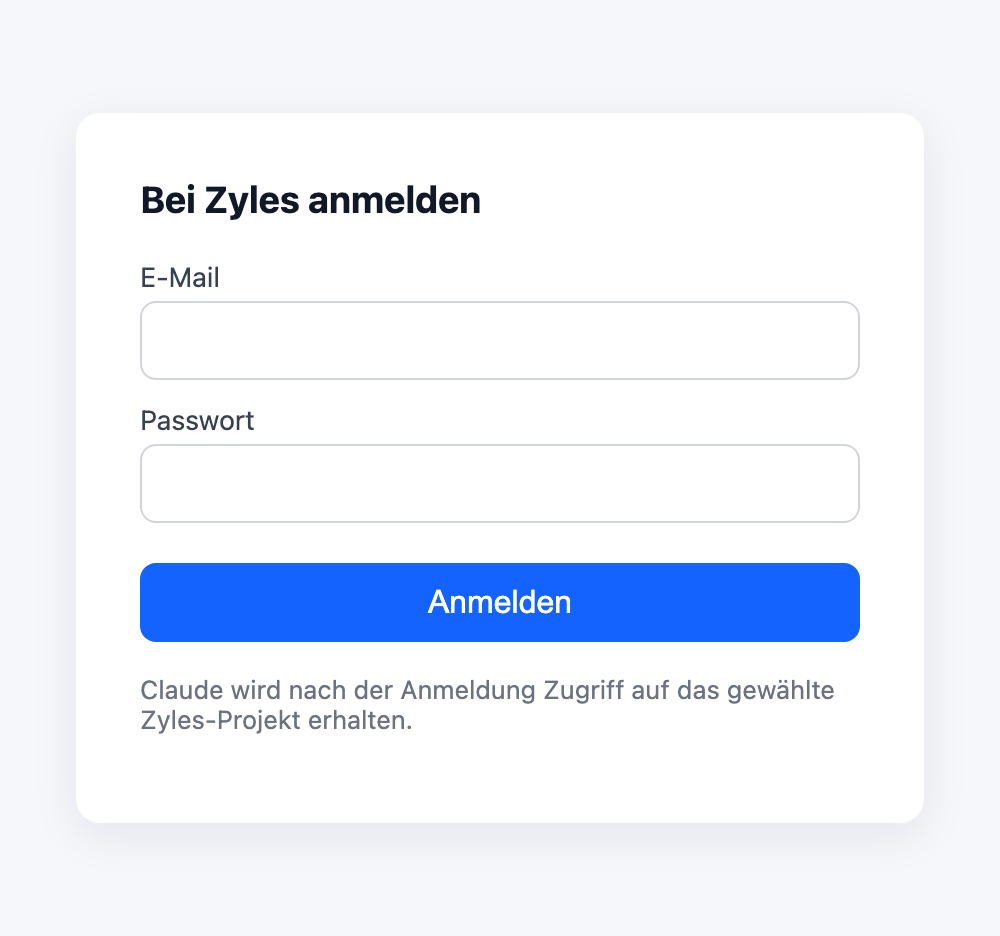
Your password is only ever sent to Zyles — Claude never sees it. Zyles hands Claude nothing but an access token.
Step 4 — Pick a project
If your account belongs to several projects, choose the default project Claude should work with and click Connect.
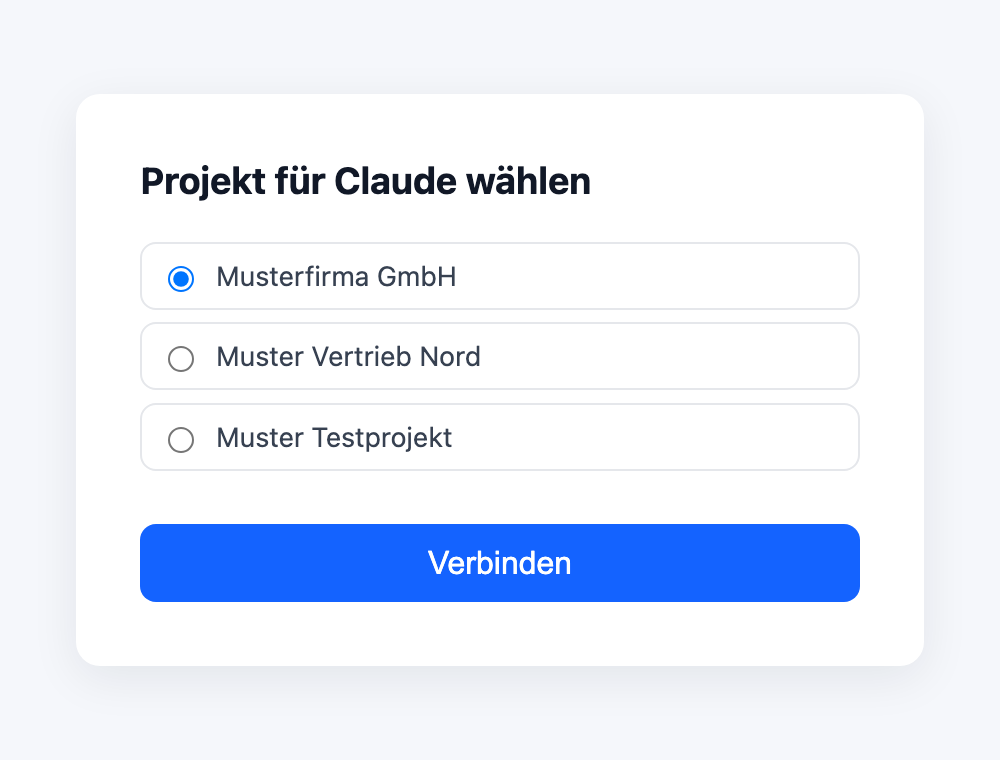
The window closes and the connector shows as Connected.
You are only setting the default project here. Claude can reach any other project on your account later — see Multiple projects.
Continue to Step 5 — Test the connection.
Path B — API key
| Server URL | https://mcp.zyles.ai/mcp |
| API key | Your project-scoped Zyles API key. To get one: in the dashboard at app.zyles.ai, go to Settings → API Keys, create a key and copy it. Available on the Premium plan only. |
Give every person their own key. Never share one. A key is bound to exactly one project and can be revoked at any time.
Claude Code
claude mcp add --transport http zyles https://mcp.zyles.ai/mcp \
  --header "Authorization: Bearer YOUR_API_KEY"
Claude Desktop and other clients
- Open the config file:
- macOS:
~/Library/Application Support/Claude/claude_desktop_config.json - Windows:
%APPDATA%\Claude\claude_desktop_config.json
- macOS:
- Add the
zylesblock (ifmcpServersalready exists, just add the"zyles": { … }entry) and replaceYOUR_API_KEY:
{
  "mcpServers": {
    "zyles": {
      "type": "http",
      "url": "https://mcp.zyles.ai/mcp",
      "headers": {
        "Authorization": "Bearer YOUR_API_KEY"
      }
    }
  }
}
- Fully quit and reopen Claude Desktop.
The same JSON works for Claude Code via ~/.claude.json. Other MCP-capable
clients (e.g. Cursor) use the same pattern: HTTP transport, URL
https://mcp.zyles.ai/mcp, bearer header. Clients that only accept a URL
usually expose the header under "Custom Headers".
A quick test with no client at all:
curl -sS -X POST https://mcp.zyles.ai/mcp \
  -H "Authorization: Bearer $ZYLES_API_KEY" \
  -H "Content-Type: application/json" \
  -H "Accept: application/json, text/event-stream" \
  -d '{"jsonrpc":"2.0","id":1,"method":"tools/list","params":{}}'
Step 5 — Test the connection
Just tell Claude:
"Call zyles_whoami."
If your project / plan comes back, everything is connected. From here Claude can work with your leads, smart views, agents and so on through the Zyles tools (see the tool reference).
In Claude Code, claude mcp list also shows the status.
Using multiple projects
After signing in via path A, Claude is not limited to the default project. Just ask:
Which Zyles workspaces do I have?
Claude calls workspaces_list and lists every project with its ID. After that a
hint like "use the Musterfirma GmbH project for this" is enough — Claude passes
the matching project_id to each tool call.
With path B the key fixes the project and project_id is ignored.
Troubleshooting
| Symptom | Cause & fix |
|---|---|
| 401 / "Unauthorized" | Path A: the token expired — disconnect and reconnect the connector. Path B: Authorization: Bearer <key> is missing, or the key was revoked. |
| Tools don't show up | Restart the client after setting it up. The URL must end in /mcp. |
403 mentioning your plan | Your plan doesn't cover the feature (e.g. open_api, ai_crm). The backend's exact message is passed through. |
| "Sign-in failed" | Wrong email/password. They are the same credentials as the Zyles login. |
| Claude doesn't use the tools | Start a new conversation and state the goal explicitly ("create a lead in Zyles …"). |
405 on GET /mcp | Not an error: the server is stateless and only answers POST. |
| Backend unreachable | Temporary network/backend issue — try again later. |
To check whether the service is up at all:
curl https://mcp.zyles.ai/health
Revoking access
Remove the connector in your client (Claude Code: claude mcp remove zyles).
On path B, also revoke the API key in Zyles.